Saturday, April 24, 2021

Slide Master to freeze content in Google Slides

 Q:  Have your students ever been confused because they removed or deleted part of the Google Slide set you shared?

A:  Freeze your content with the Master Slide setup in Google Slides.

The Master Slide configuration shows your content without allowing student alterations.  This is a great way to add interactive components on top of your design.  

How to use the Master Slide lesson by Sarah Kiefer

How to create a Master Slide set by: Technology Central

Wednesday, September 16, 2020

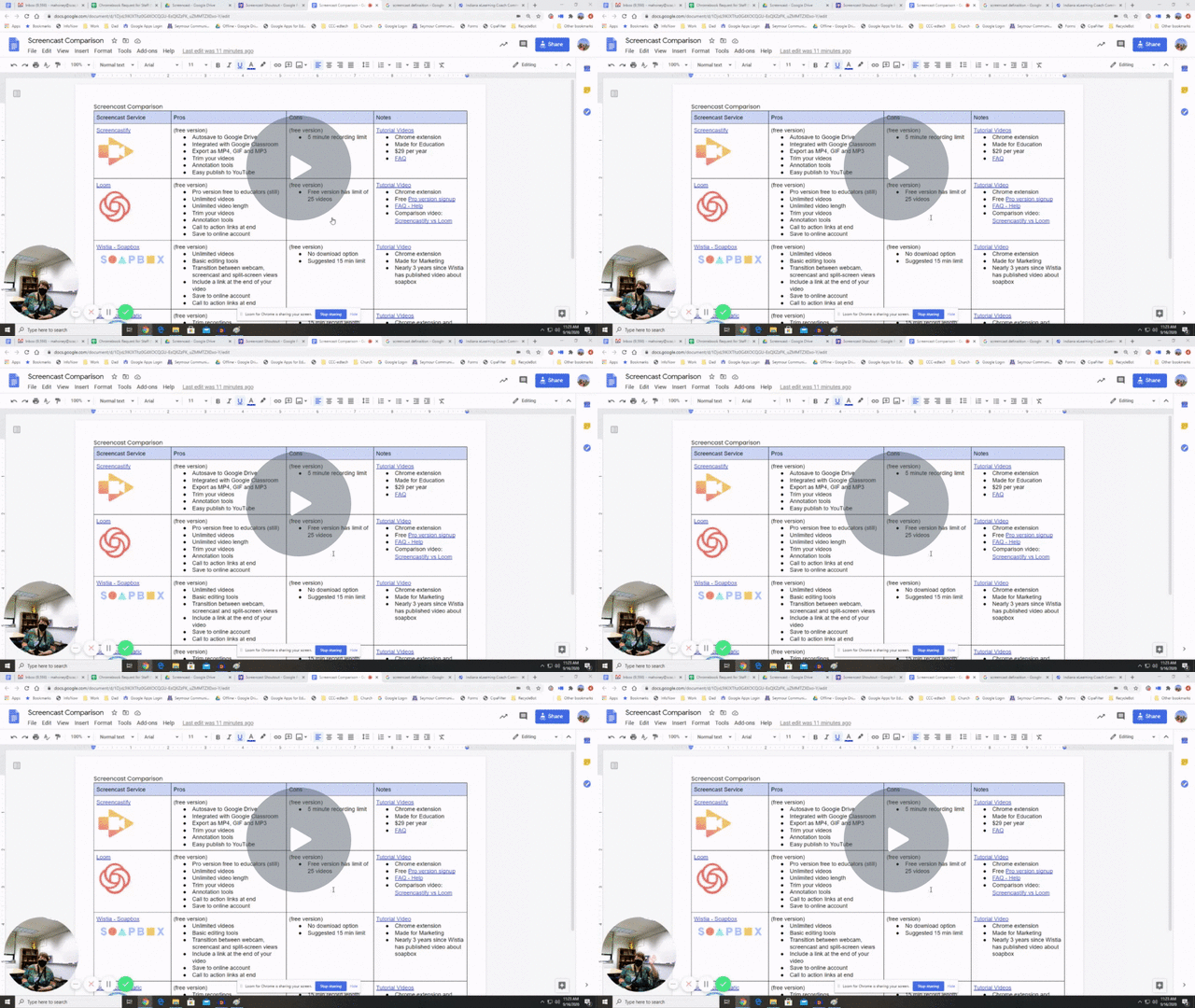
Screencast Comparison

 The following chart shows pros and cons of four popular screencast tools:

Screencast Comparison Chart - Watch Video

Feel free to comment about your favorite tool on the Shoutout Form

Monday, December 2, 2019

Collecting Audio with Google Forms

Have you ever wanted to learn more about your students or how to pronounce their name?
The following video shows how you can utilize a Google form to collect file uploads.  Students will also use: https://online-voice-recorder.com/ to create their response.

Visit the online form and upload your answer:  Joy Share 
Feel free to make your own form and try with your class.  I wonder what other creative ways you can utilize the file upload feature or https://online-voice-recorder.com.

Wednesday, April 17, 2019

Level Up your lessons with Pear Deck

Have you ever wanted to ensure your students were paying attention?  Why not try Pear Deck?

Tutorial Video:  https://youtu.be/9PJgsa-fnmA


Pear Deck: Quick Start Guide


Signup for a training webinar: https://www.peardeck.com/learn-pear-deck


Lessons and Activities: https://www.peardeck.com/orchard/

20 ways to utilize Pear Deck  (DitchtheTextbook article)

Making Flashcards (Matt Miller tutorial)

Add closed Captioning: (video tutorial)


Grade 6-12 staff currently have access to Pear Deck.
Contact Shawn Mahoney for more information.


Level up your lessons with Pear Deck !


Friday, November 2, 2018

Video Tutorial - Best Sources for Images

Image Search Options

It can be a challenge to find images for student projects.  A Google image search has the Safe Search feature activated by default, an image search can sometimes show results not appropriate for school use.   It is also important to adhere to digital copyright protocol.  The following video demonstrates various ways students can find appropriate images.  The links below show resources for images and ways to edit or create your own.


Image Search Options:
Creative Commons:  https://ccsearch.creativecommons.org/

Kid Friendly Search Engine:  https://www.kiddle.co

Pixabay: https://pixabay.com/

Students can create their own artwork with: http://kleki.com/

Advanced artwork can be created with: https://pixlr.com/